How to Connect Your Polymarket Account to Whalidate with a Session Key
Last updated
You can trade live from the Polymarket account you already have. Whalidate asks for one thing: your permission for a session key, a separate trading key, which you approve with a signature in your wallet app. It lets Whalidate place and cancel orders in your account. It can't withdraw your money. This page is the long version of the connect screens in the app: what you need, each step, and one block for every message the app can show you. Whalidate is not affiliated with Polymarket. Developers can read how the permission works in the session keys guide for developers.
What you need
Three things have to be true before you start.
- You log in to Polymarket with a wallet app, such as MetaMask or Rabby, not with e-mail or Google.
- That wallet app is in this browser or on your phone. It has to be able to sign.
- The account is from May 2026 or later, and trading is set up on Polymarket. For example, make one small trade there.
You also need a paid plan or the free trial. Connecting takes a minute or two once all of this is true. If one of the three is not true, the next sections say what to do.
How you log in to Polymarket
Polymarket's help center describes three ways to sign up: with Google, with an e-mail address and a code it sends you, or with a crypto wallet. Polymarket names MetaMask, Rabby and Phantom for the wallet route. Whalidate has not tested each of them.
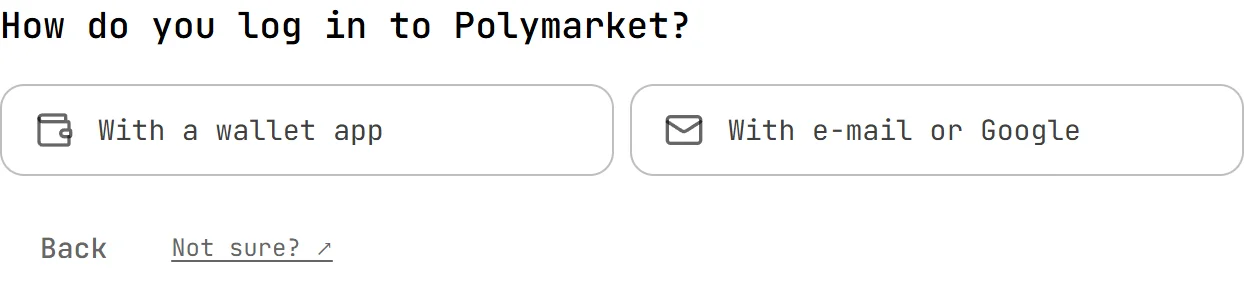
- If you pick a wallet and approve in a wallet app, you log in with a wallet app. Go on.
- If you type an e-mail address and a code, or log in with Google, you log in with e-mail or Google. See E-mail and Google accounts.
Not sure? If you have no wallet app such as MetaMask or Rabby, you log in with e-mail or Google.
Which address controls the account
The address that counts is the one your wallet app uses when you log in to Polymarket. It is the address you pick in your wallet app, not the address in Polymarket's profile menu: that is the account's own address, a different one that Polymarket derives from it. Whalidate asks the wallet app for its address and looks for the account behind it. If your wallet app holds several addresses, switch to the one you log in to Polymarket with before you choose the wallet in Whalidate.
E-mail and Google accounts
"E-mail and Google accounts can't be connected" is the message the app shows when you say you log in with e-mail or Google.
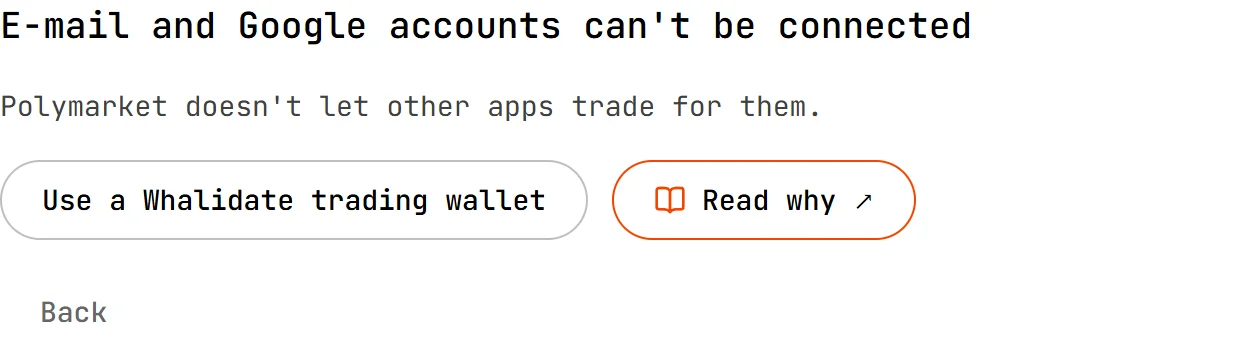
Polymarket's documentation describes one way to approve a session key: a signature from the wallet that controls the account. With an e-mail or Google log-in, that wallet sits inside Polymarket's own log-in. The documentation lists no page or window where another app can ask Polymarket for the approval, so Polymarket doesn't let other apps trade for these accounts. We read the documentation again on 16 November 2026.
What you can do instead:
- Use a Whalidate trading wallet. The app offers it on the same screen. It works on every paid plan and in the free trial.
- If you also have a Polymarket account that you log in to with a wallet app, connect that one.
Accounts opened before May 2026
Polymarket's documentation names three kinds of account wallet. Every wallet deployed on or after 4 May 2026 is the newest kind, a Deposit Wallet. Two older kinds remain: one made for accounts that logged in with e-mail or Google, and one made for accounts that logged in with a wallet app. Session keys work only with the newest kind.
An older account is refused with "This account uses Polymarket's older wallet, from before May 2026. Polymarket's trading permissions don't work with it. Nothing was changed." Polymarket's documentation says a way to move older wallets to the new kind is planned. It gives no date. For now, use a Whalidate trading wallet. This check does not count toward the 10 requests in the request limit.
Connect, step by step
Start
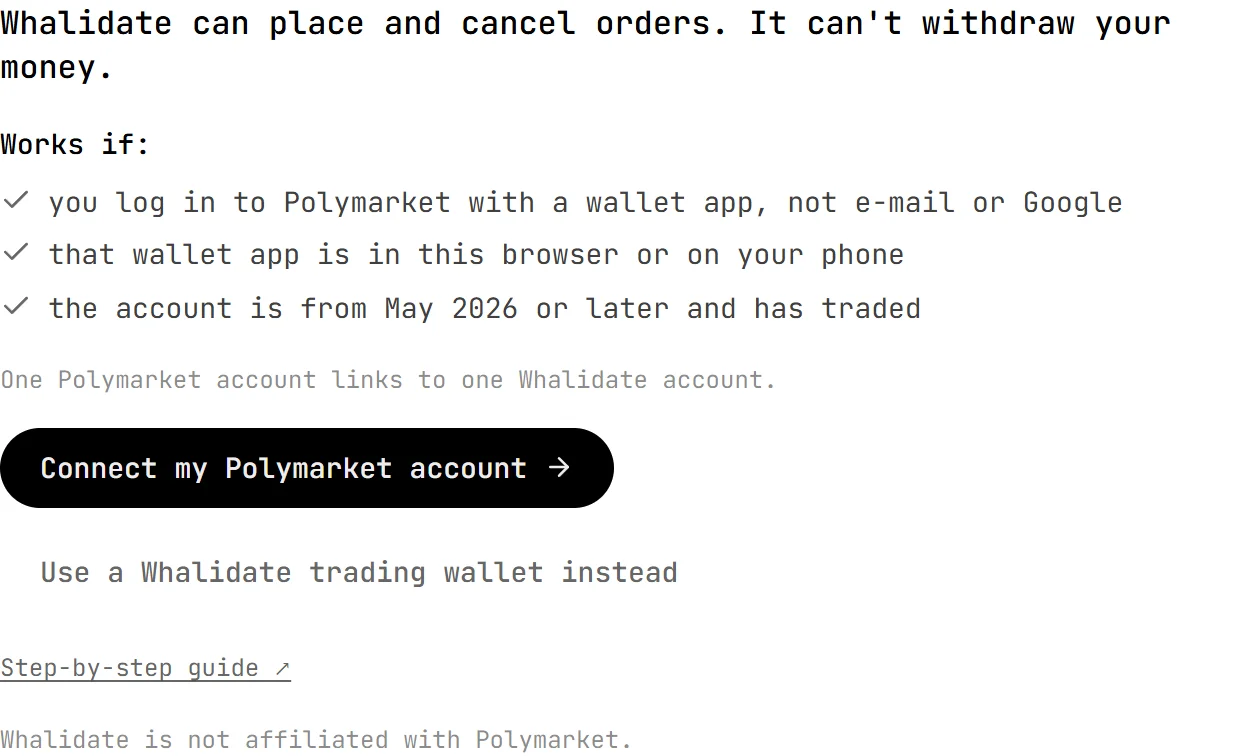
Open the connect page from the Go live wizard, or from Wallet. You see the three conditions again, and the line "Whalidate can place and cancel orders. It can't withdraw your money." Press Connect my Polymarket account. The small link "Step-by-step guide" on that screen opens the top of this guide.
Then the app asks how you log in to Polymarket: With a wallet app or With e-mail or Google. Choose the first one. The second leads to E-mail and Google accounts. "Not sure?" brings you to How you log in to Polymarket.
Choose the wallet
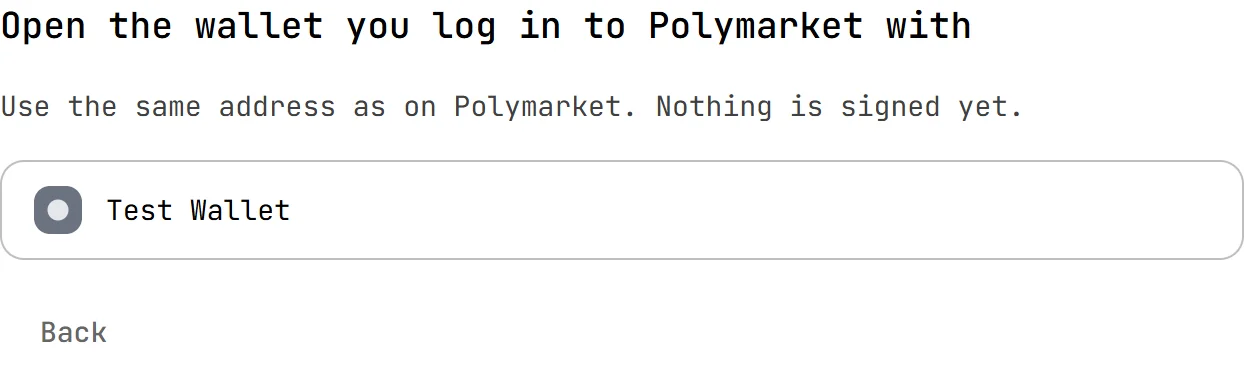
The title is "Open the wallet you log in to Polymarket with". The app lists the wallet apps it finds in this browser. Use the same address as on Polymarket: see Which address controls the account. Nothing is signed at this step. Whalidate only reads the address. If your wallet is on your phone, choose WalletConnect: see Connecting from a phone.
The account is found
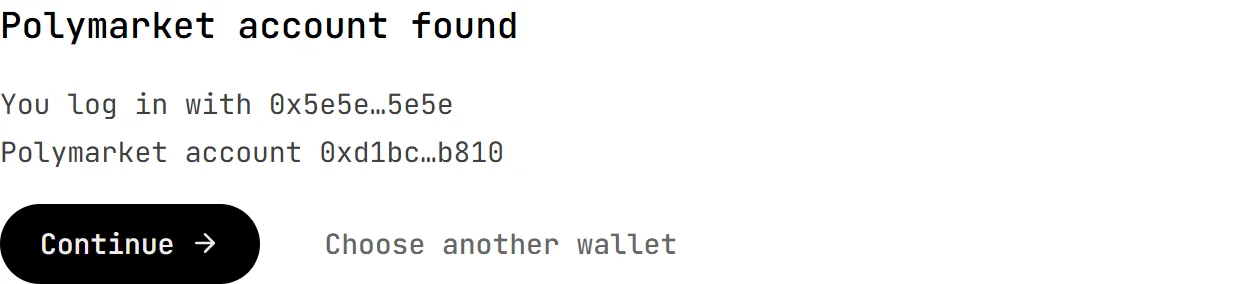
The app shows "Polymarket account found" and "You log in with 0x…", your wallet's address, shortened. Check that it is the address you expect, then press Continue. If no account is found, go to No Polymarket account logs in with 0x….
The network
Polymarket runs on Polygon, and your wallet app signs this request only while it is on Polygon. If it is on another network, the app says "Your wallet app is on another network" and offers Switch to Polygon. See Your wallet app is on another network.
The signature
The app shows what you are about to sign and the time to sign by.
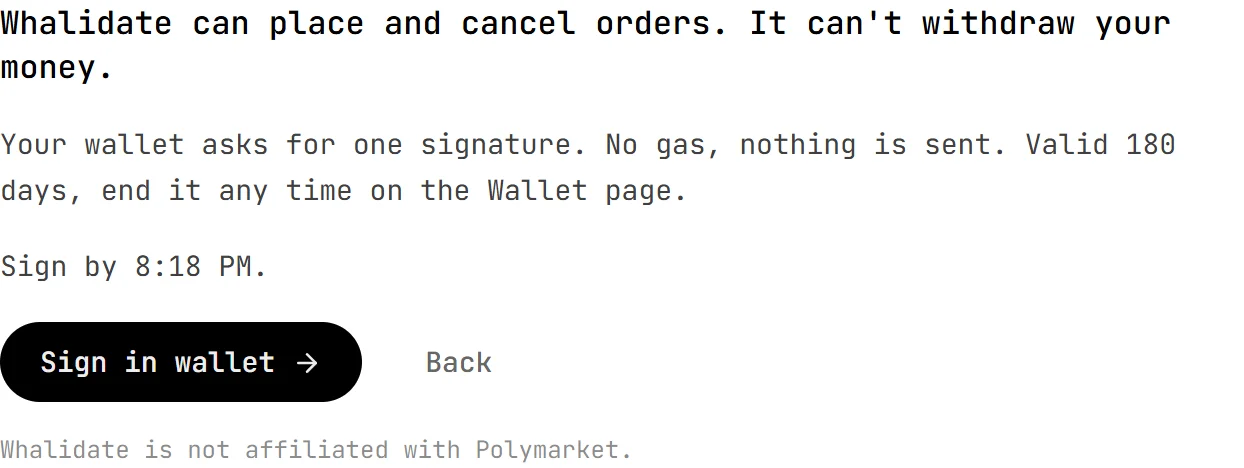
In your wallet app you will see:
- A signature request from "DepositWallet" on Polygon (chain 137).
- No transaction is sent from your wallet and no gas is paid.
What the signature allows: Whalidate can place and cancel orders in your Polymarket account. What it does not allow: it can't withdraw your money. Valid for 180 days. You can end it any time on the Wallet page. Sometimes your wallet asks for two signatures. The button then reads "Sign in wallet (1 of 2)" and "Sign in wallet (2 of 2)".
Check the request against what Whalidate shows. If the two differ, do not sign: see The request doesn't match. Sign by the time shown on the screen.
The wait
After you sign, the app shows four stages: Signed, Sent to Polymarket, Confirming on Polygon, Ready to trade. You don't need to sign again. If it takes longer than usual, see This is taking longer than usual.

Done
"Your Polymarket account is connected — until" a date 180 days away. Press Continue to Go live to finish switching a strategy, or Back to Wallet. If your Whalidate trading wallet still holds money or positions, the account shows as authorized and starts trading once that wallet is empty.

Connecting from a phone (WalletConnect)
Choose "WalletConnect — a wallet on your phone or another device" in the list of wallets. The app shows a code. Open the request in the wallet app on your phone, or scan the code, and approve the connection there. Then go on from the account is found.
"Couldn't connect to your wallet app" is the title the app shows when the link does not come up, with the text "We couldn't connect to your wallet app. Make a new code and try again. Nothing was signed." What it means: the connection between this page and your phone did not open. What to do: press New code and try again, with the wallet app open and unlocked on your phone.
If something goes wrong
Each block below starts with the message the app shows. Where the message holds an address, it is written here as 0x…. Find your message, read what it means, then do what it says. If none of them helps, write to us.
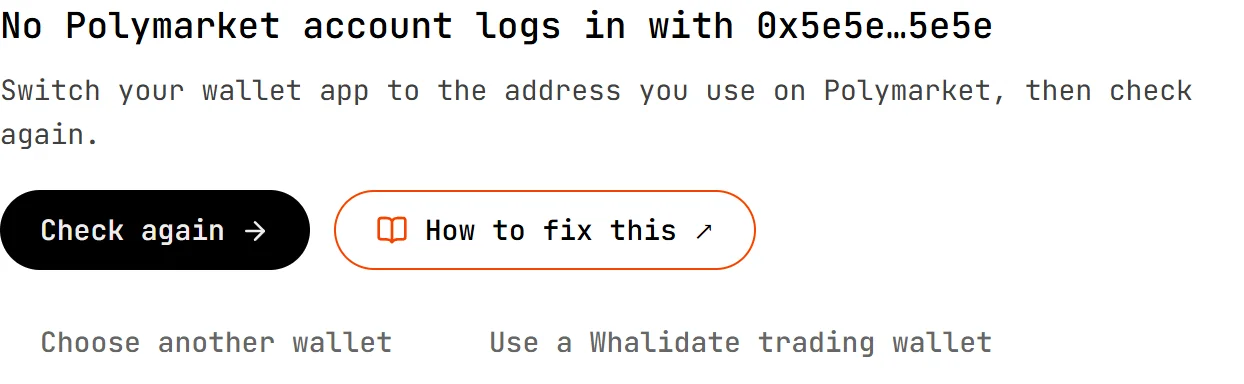
No Polymarket account logs in with 0x…
What it means. Whalidate asked your wallet app for its address and found no Polymarket account behind it. There are three usual reasons: your wallet app is on a different address than the one you log in to Polymarket with; you log in to Polymarket with e-mail or Google; or you don't have a Polymarket account yet.
What to do.
- Different address (this applies only when the account exists under another address): switch your wallet app to the address you use on Polymarket, then press Check again. If the app then says "Your wallet app is still on 0x…", your wallet app has not switched yet: switch it in the wallet app itself first. See Which address controls the account. If your Polymarket address is in another wallet app, press Choose another wallet.
- E-mail or Google: that account can't be connected. See E-mail and Google accounts.
- No account yet: open one by logging in to Polymarket with this wallet app and set up trading there, then press Choose another wallet and choose this wallet again. See Finish setting up trading.
This Polymarket account can't be connected. It may be from before May 2026, or its wallet may not support this. Nothing was changed.
What it means. Session keys work only with the newest kind of Polymarket wallet, and only when the wallet allows them. When Whalidate knows the reason, the app shows one of the messages below instead of the one above. Whalidate changed nothing in any of them.
- "This account uses Polymarket's older wallet, from before May 2026. Polymarket's trading permissions don't work with it. Nothing was changed." The account was opened before 4 May 2026. See Accounts opened before May 2026.
- "This Polymarket wallet doesn't support trading permissions, so it can't give Whalidate access. Nothing was changed." The account's wallet does not allow session keys.
- "This Polymarket wallet is paused by its owner. If you paused it, unpause it on Polymarket, then try again. Nothing was changed." The wallet's owner has paused it.
What to do. For the older wallet and for the wallet that doesn't support trading permissions, press Choose another wallet to connect a different Polymarket account, or use a Whalidate trading wallet. If the wallet is paused and you paused it, unpause it on Polymarket, then press Choose another wallet and choose the same wallet again. For the first message above, which gives no reason, do the same: if you paused the wallet, unpause it and choose it again; otherwise connect a different account or use a Whalidate trading wallet. None of these checks counts toward the 10 requests in the request limit.
Finish setting up trading on Polymarket — for example, make one small trade there — then come back and check again. Checks like this don't use up your daily connection requests.
What it means. The account exists, but trading is not fully set up on Polymarket yet. Whalidate checks that before it asks you to sign.
What to do. Open Polymarket and finish setting up trading, for example with one small trade. If Polymarket asks you to approve trading, accept it there. Then come back and press Check again. A check that ends here does not count toward the 10 requests in the request limit.
The line about new markets. After you connect, the done screen and your account's card on the Wallet page can say: "New Polymarket markets won't be copied until you approve trading for them on Polymarket." The account is connected and trades in Polymarket's older markets keep being copied, but the account has not approved trading for Polymarket's new markets, so trades in those are not copied. Open Polymarket and approve trading for the new markets there: if Polymarket asks you to enable trading for new markets, accept it. You don't need to connect again. The line goes away when Whalidate next reads the account's permissions, which is not instant.
This Polymarket account is already linked to another Whalidate account. Nothing was sent to Polymarket. Only the owner of that account can unlink it, on their Wallet page. Connect a different Polymarket account. If you didn't link it yourself, write to us at support@whalidate.com.
What it means. One Polymarket account links to one Whalidate account. This one is linked to another Whalidate account, maybe one you made earlier.
What to do. Sign in to the Whalidate account that holds the link and, if a connection is active there, disconnect it first, then unlink the account on its Wallet page: see One Polymarket account, one Whalidate account. If you don't know who linked it, write to us.
The signature didn't come from the wallet that signs for this Polymarket account. Nothing was changed. Try again from the wallet you sign in to Polymarket with.
What it means. Your wallet app signed with an address that is not the one that controls the Polymarket account. The app can also say "This signature isn't from the wallet that owns this Polymarket account. Sign again in that wallet." It means the same.
What to do. Switch your wallet app to the address you log in to Polymarket with. See Which address controls the account. Then press Try again. After the second message, the one that says "Sign again in that wallet", the button is Sign again.
We couldn't use your signature. Your Polymarket account may have done something else in the meantime, or the request ran out of time before it could be sent. Nothing was changed. Sign a new request, and hold off on Polymarket until it finishes.
What it means. The signature was made but could not be used. Something else may have happened in your Polymarket account between the request and your signature, or the request ran out of time before it could be sent.
What to do. Press Sign the new one and sign it. Do nothing on Polymarket until it finishes.
This request expired. Sign the new one.
What it means. A request to sign is open for a short time. This one ran out before you signed it. Nothing was changed.
What to do. Press Sign the new one and sign it, by the time shown.
Polymarket didn't accept the permission. Nothing was changed. Try again in a few minutes.
What it means. Whalidate sent your signed permission to Polymarket and Polymarket refused it.
What to do. Wait a few minutes and press Try again. If it keeps happening, write to us and say what the screen shows.
Polymarket didn't finish setting up the permission in time. Whalidate has deleted its key. Try again in a few minutes.
What it means. Your signature was sent, but Polymarket did not register the permission in time. Whalidate deleted the key it had made, so nothing can trade with it.
What to do. Wait a few minutes and press Try again.
Something went wrong on our side and this request stopped. Try again. If it happens again, write to us at support@whalidate.com.
What it means. The fault is on Whalidate's side, or the connection was lost. The same block covers these messages: "Whalidate couldn't carry out this request", "No connection to the server", "This request is no longer open" and "We couldn't confirm what happened".
What to do. Try again, or press Start again. For "We couldn't confirm what happened", press Check again in a moment. If it happens again, write to us and quote the request number the screen shows.
You've started as many connection and renewal requests as 24 hours allow. Try again later. Nothing was changed.
What it means. Whalidate allows up to 10 connection and renewal requests in a rolling 24 hours. A request counts whether you start it or Check again starts it, unless it ends in no account, not supported or not ready. Those don't count toward the 10. They have a cap of their own, at most 30 in the same rolling 24 hours, and past it the app shows this same message. The screen can also say "Today's limit on new connections for accounts without a paid plan has been reached", a separate daily limit.
What to do. Wait. The screen says when you can try again, when it knows. For the daily limit, try again tomorrow (UTC), or choose a paid plan, which has no such limit. Before you start again, check the three conditions in What you need.
Your Whalidate wallet isn't empty yet: it holds money or positions, a live strategy runs on it, a withdrawal or transfer is in progress, or its balance hasn't been read in the last two minutes. Pause the strategy, close its positions and withdraw what's left, confirm a withdrawal if we e-mailed you about one, or wait for what's in progress to finish, then try again.
What it means. A strategy trades from one live place at a time. If you have a Whalidate trading wallet with money or positions in it, Whalidate won't switch the strategy to your Polymarket account until that wallet is empty.
What to do. Do what the message lists: pause the strategy, close its positions, withdraw what's left, confirm any withdrawal we e-mailed you about, or wait for what is in progress. Then try again.
Your own Polymarket account trades live, which is part of the paid plans.
What it means. Live trading from your own account needs a paid plan, or the free trial.
What to do. Choose a plan on the pricing page, then connect again.
Connecting a Polymarket account is switched off right now. Nothing was changed. You can come back later, or trade from a Whalidate trading wallet.
What it means. Whalidate has turned connecting off for now. Nothing about your account changed.
What to do. Come back later, or use a Whalidate trading wallet. If it stays off for days, write to us.
You declined the signature. Nothing was changed.
What it means. You pressed Reject in your wallet app, or closed its window.
What to do. Press Try again and approve the request. Check first what the wallet shows: see The signature.
Your wallet app is on another network
What it means. Polymarket runs on Polygon, and your wallet app signs this request only while it is on Polygon. The same block covers "Your wallet stayed on another network. Switch it to Polygon to continue."
What to do. Press Switch to Polygon and approve the switch in your wallet app. If your wallet app doesn't offer it, add or choose the Polygon network in its settings, then press the button again.
Your wallet app is on another account (0x…). Switch it back to 0x… to sign, or start again.
What it means. While the request was open, your wallet app moved to a different address. The signature has to come from the address the request was made for.
What to do. Switch the wallet app back to that address, then sign. Or press Start again with the address you want.
Your wallet app already has a request open. Finish or close it there, then try again.
What it means. The wallet app didn't answer in the usual way. The same block covers these messages: "Your wallet app didn't share your address with Whalidate. Allow it there, then try again.", "Your wallet app disconnected. Choose it again to continue." and "Your wallet app gave an answer we can't use."
What to do. Open your wallet app and unlock it. Finish or close any request it shows. Allow Whalidate to see your address if it asks. Then try again, or choose the wallet again. If it keeps happening, try another wallet app, or write to us.
The request doesn't match what Whalidate shows, so it can't be signed. Nothing was signed.
What it means. What your wallet app was asked to sign is not what Whalidate is showing you. Whalidate stops there, so that nothing you did not see is signed.
What to do. Press Start again. If it happens again, do not sign, and write to us.
This is taking longer than usual. You don't need to sign again. You can leave this page — we'll e-mail you when it's ready, or if it doesn't go through.
What it means. Your signature is in, and Polymarket or the network is slow. The app shows a second version before you sign, while it looks for your account: "Nothing has been signed. You can leave this page and come back."
What to do. Wait. Leave the page if you like: we e-mail you when it is ready, or if it did not go through. Do not sign a second time.
Write to us
If a block did not help, write to support@whalidate.com. Send the text the screen showed and, if it shows one, the request number. Never send a key or a seed phrase: we never need one.
After you connect
Budget and limits
Your money stays in your Polymarket account. You add money on Polymarket and you withdraw it there. The strategy trades with what is available in the account: the pUSD that no position holds. Positions you hold yourself on Polymarket are not counted. If you set a larger amount in the wizard than the account holds, that is allowed, but the strategy can only trade what is in the account until you add more on Polymarket. Whalidate's wallet page shows these figures for your own account. The permission itself has no amount limit; the budget and loss limits you set are rules Whalidate applies.
Renew
Access lasts 180 days. In the last 30 days a Renew button opens on the Wallet page, and the app warns you in the 14 days before the end. A renewal is one more signature. The old permission keeps working until the new one is active, so there is no gap and no need to wait for the last day. If you do nothing, the access ends on its date: the strategy pauses, no new trades open, and its open positions are no longer managed, with no take-profit or stop-loss. Before the window opens, the app says "Renewal opens on" a date.
Disconnect
On the Wallet page, choose Disconnect. If the strategy has open positions, you pick first: sell them while Whalidate still has access, or keep them in your account and manage them on Polymarket. The strategy is paused either way. Then you pick how to end it:
- End the permission. One signature in your wallet app ends the permission on Polymarket. No transaction is sent from your wallet and no gas is paid.
- Only disconnect. Whalidate deletes its key and stops trading at once. The permission itself stays active on Polymarket until its date.
Disconnecting doesn't unlink the account. If something fails while you disconnect, press the button again, or choose only disconnect.
Unlink
A linked Polymarket account is tied to your Whalidate account, so no other Whalidate account can connect it. Once no connection is active, you can let it go on the Wallet page with Unlink account. Open positions on it stop being tracked and show as Unlinked in your history, with no result. The shares stay in your Polymarket account. Your live strategy stays paused. Your trades and results stay in Whalidate.
One Polymarket account, one Whalidate account
One Polymarket account links to one Whalidate account. The link stays until you unlink the account. Disconnecting does not undo it. Unlinking does.
What Whalidate can and can't do
With the permission you sign, Whalidate can place and cancel orders in your Polymarket account. It can't withdraw your money. The permission lasts 180 days from the signature, and you can end it before that on the Wallet page: End the permission ends it on Polymarket's side. Polymarket's documentation describes a session key as a separate signer that the account's owner authorizes, that can't withdraw, and that ends on its date or when the owner revokes it. You can read the same in the guide for developers.
Questions people ask
Can I connect a Polymarket account that I log in to with e-mail or Google?
No. Polymarket's documentation describes one way to approve a session key: a signature from the wallet that controls the account. With an e-mail or Google log-in, that wallet sits inside Polymarket's own log-in, and the documentation describes no page where another app can ask for the approval. Whalidate can still trade for you from a Whalidate trading wallet. We last checked Polymarket's documentation on 16 November 2026.
Can Whalidate withdraw money from my Polymarket account?
No. The permission you sign lets Whalidate place and cancel orders. It does not let it withdraw. Your money stays in your Polymarket account, and you add or withdraw it on Polymarket.
How long does the access last?
180 days from the signature. Renewal opens in the last 30 days, with one more signature, and the old permission keeps working until the new one is active. If you do nothing, the access ends on its date, the strategy pauses, and its open positions are no longer managed.
How do I end Whalidate's access?
On the Wallet page, choose Disconnect. You can end the permission on Polymarket with one signature in your wallet app, or only disconnect: Whalidate then deletes its key and stops trading at once, and the permission itself stays active on Polymarket until its date.
Why does it say my account can't be connected?
Session keys work only with the newest kind of Polymarket wallet, which every account opened from 4 May 2026 has, and only when the wallet allows them. An account with an older kind of wallet can't be connected: Polymarket's documentation says a way to move older wallets is planned, and gives no date. The wallet may also not support trading permissions, or be paused by its owner; if you paused it, unpause it on Polymarket and try again.
Sources
- Session Keys, Polymarket documentation, read on 16 November 2026
- Wallets and Authentication, Polymarket documentation, read on 16 November 2026
- How to Sign-Up, Polymarket help center, read on 16 November 2026
- Whalidate's own limits (180 days, renewal in the last 30 days, 10 requests in 24 hours, 30 such checks in 24 hours) are the app's settings on 17 November 2026